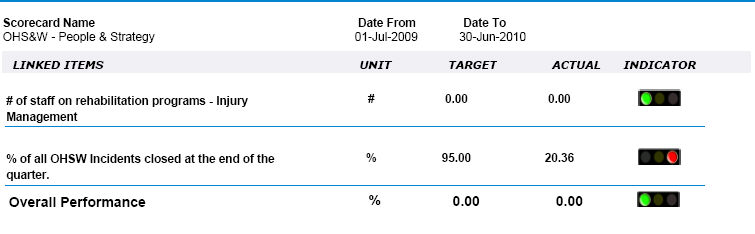
This report displays a summary of items linked to a particular scorecard. These reports can be filtered by Date Range, Hierarchy and Scorecard.
STEP 1: To access this report, go to Reporting > Performance Management > select the 'Scorecard Report'.
STEP 2: Select the relevant criteria and click the 'Preview' button.
The filters available to sort the details are:
|
Filters |
Description |
Default Selection |
|
Date Select |
Select the date range in 'From' and 'To' field. Will show KPIs which have targets and/or actuals within the period. |
Current financial year |
|
Hierarchy |
Select the name of the hierarchy from the drop-down menu. This can be your strategic hierarchy (Goals, Outcomes, Strategies, Actions) or organisational hierarchy (Directorate, Business Unit, Service). Note: Using this filter - Scorecards being filtered into this report must be linked to the selected Hierarchy. |
Show All |
| Hide Comments | Tick this box to hide the Scorecard Progress Comments | Ticked OFF |
| Hide Target / Actual | Tick this box to hide the Target / Actuals columns | Ticked OFF |
| Hide Traffic Lights | Tick this box to hide the traffic lights column | Ticked OFF |
| Display Confidential Actions and KPIs | Tick this box to display the confidential KPIs. Note: if you do not have access to view confidential then you will not see this filter. | Ticked OFF |
| Scorecard | Select the Specific Scorecard you would like to show. Default is Show All | Show All |
| Include Linked Risks | If you have IRM (CAMMS Integrated Risk Manager), then you can include references to the linked KPI. | Ticked OFF |
| Show Inactive Risks | If you have selected to include linked risks, you can choose to view the inactive risks or not. Tick this to show in active risks. Note: this tick box is only enabled when 'include Linked risks' tick box is ticked |
Ticked OFF |
Sample Output
Copyright © 2014-2015 CAMMS Online Help. All rights reserved.
Last revised: September 23, 2018